%201.png?width=259&height=78&name=Group%204%20(8)%201.png)
To add users to your account, please follow the steps below.
Important: You must be an Admin to add or manage users.
Step 1: Log In
Log in to your dashboard at: dashboard.loman.ai
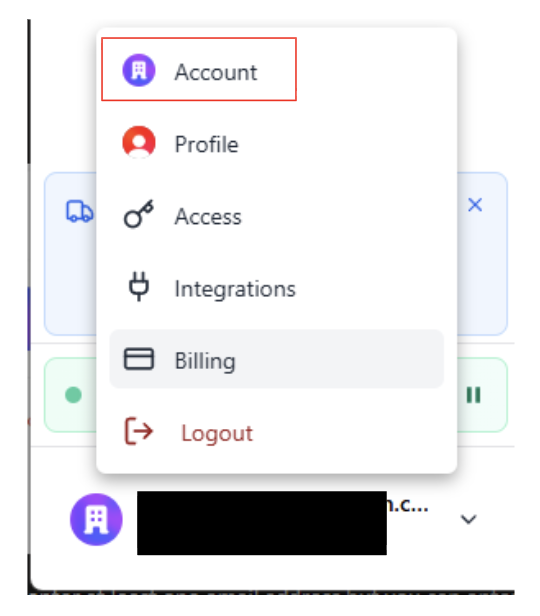
Navigate to the bottom-left corner of your dashboard.
Click on the dropdown menu.
Select the Account tab
Step 2: Invite Users
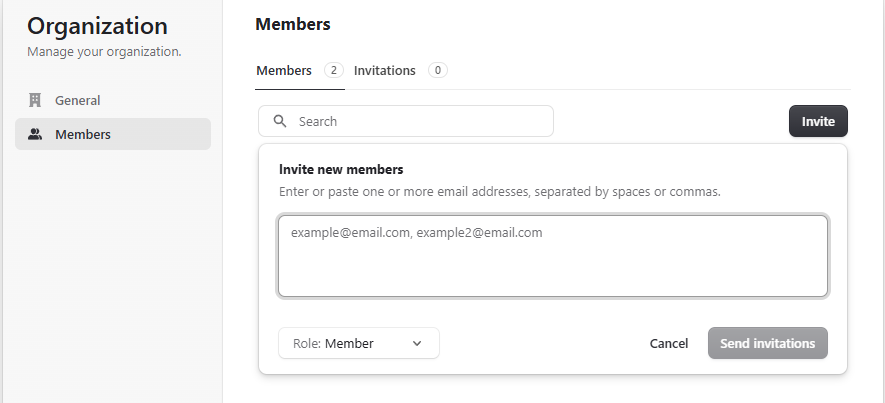
Select “Members.”
Click “Invite”
You can:
Enter one or multiple email addresses
-
Assign each user a role:
Member
Admin (if you have multiple locations, assigning a user as an admin will allow them access to all stores)
Once the invitation is sent, the user will receive an email to accept access.
The email invitation will instruct the user to “Sign in to the dashboard.”
Clicking the link will direct them to a page labeled “Enter your password.”
Despite the wording, this step is for creating a new password — the password entered here will become their login password.
User Access- Multiple Locations
If your organization has multiple locations, you can control which locations each user can access.
Location access can be managed after the user has accepted their invitation.
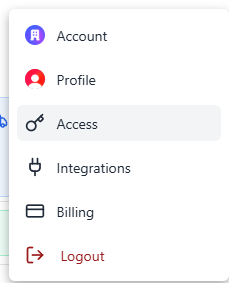
Navigate to the Access tab.
-
This will open the Access Management screen.
Here, you will see:
A list of all users.
The locations each user currently has access to.
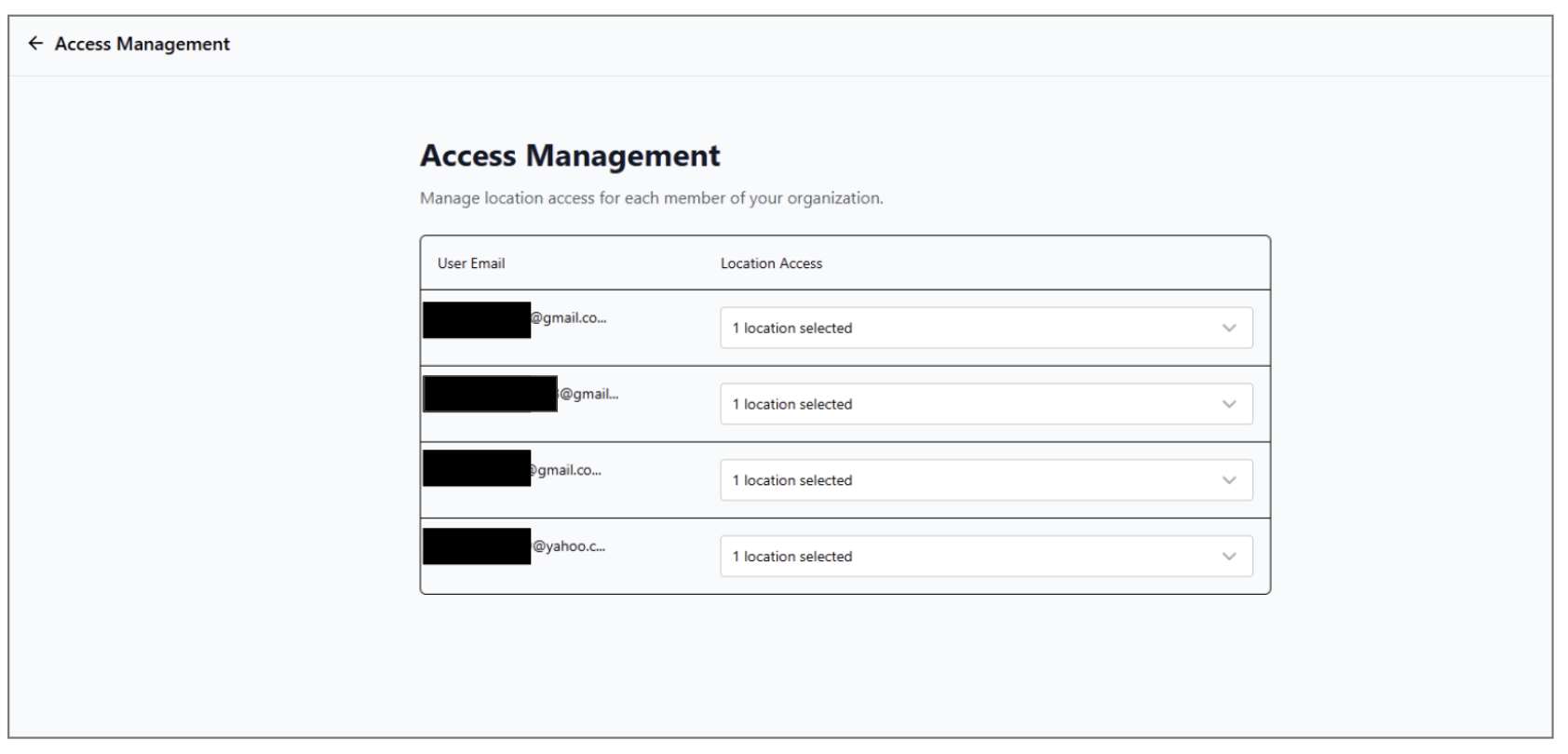
Next to each user’s name, use the Location Access dropdown.
Select one or multiple locations to grant access.
You can update access permissions at any time.