---
title: Issuing a Refund
description: loman ai issue refund
---
[Skip to content](https://help.loman.ai/knowledge/issuing-a-refund#main-content)
English
Show submenu for translations
[](https://loman.ai)
- [Tickets](https://45792283.hs-sites.com/tickets-view)
- [Sign out](https://45792283.hs-sites.com/_hcms/mem/logout)
Open main navigation
Close main navigation
- [Tickets](https://45792283.hs-sites.com/tickets-view)
- [Sign out](https://45792283.hs-sites.com/_hcms/mem/logout)
- English
Show submenu for translations
- [Contact Support](mailto:support@loman.ai)
[Contact Support](mailto:support@loman.ai)
How can we help you?
- There are no suggestions because the search field is empty.
1. [Loman Knowledge Base](https://help.loman.ai/knowledge?hsLang=en)
2. [Using Your Dashboard](https://help.loman.ai/knowledge/using-your-dashboard?hsLang=en)
# Issuing a Refund
There are multiple ways to find and process a refund on Loman.
**Toast and SpotOn users can process refunds as normal on their POS! No need for extra steps.**
The first step is to find the transaction. Either access the Earnings tab or Call & Orders on the Loman Dashboard.
EARNINGS TAB
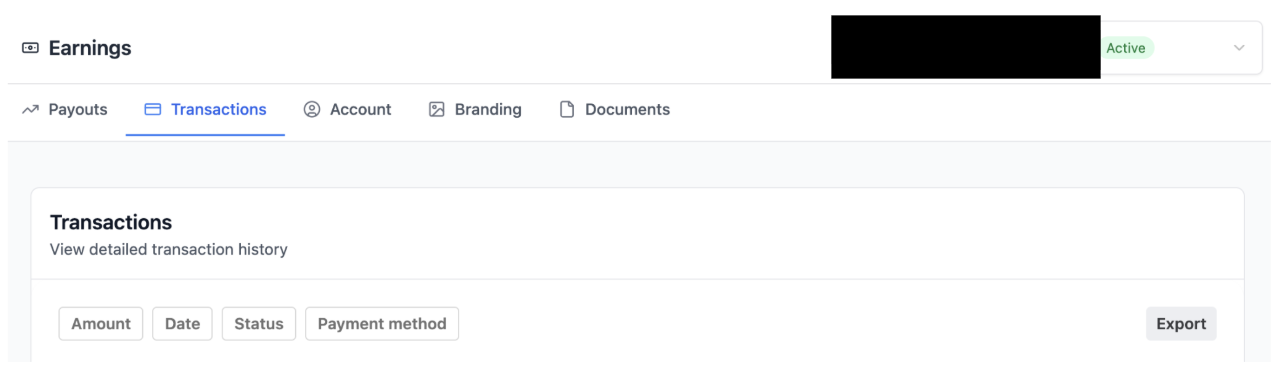
**1. Within the Earnings tab, you can find a transaction by searching for Amount and Date.**
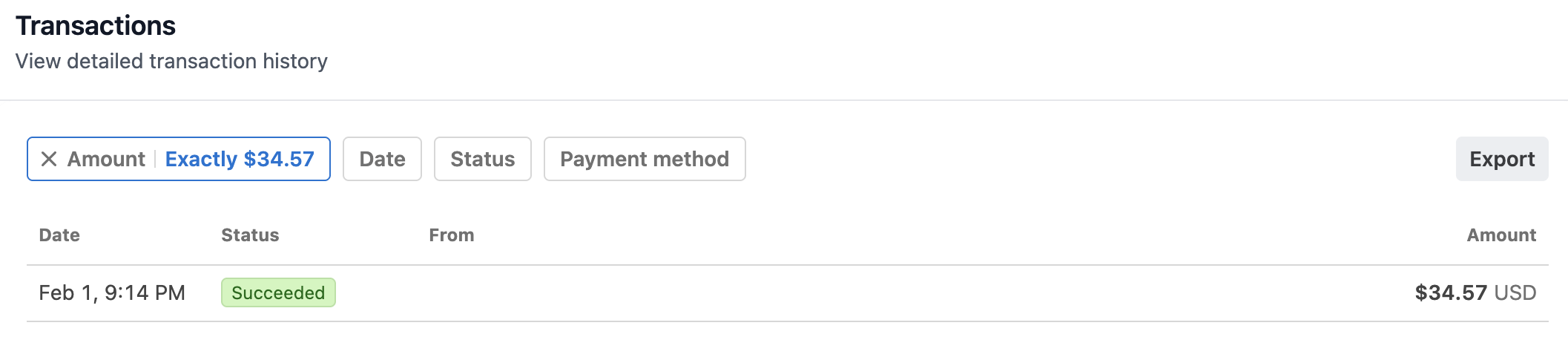
**2. In this example, I am looking for a transaction of $34.57**
**3. After finding the transaction, click on it and a new box will appear. Click the blue "Begin refund" button.**
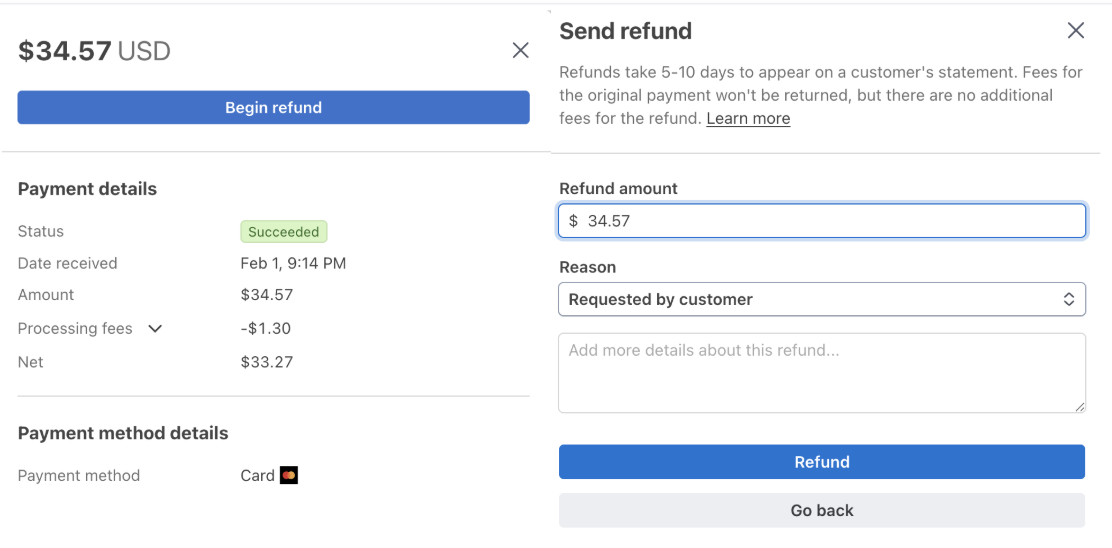
You can process any amount equal or less than to the grand total.
CALLS & ORDERS TAB
1. **With the Calls & Orders tab, you can find the call by searching for phone number.**

**2. After searching for the phone number, the call appears. Click on it.**

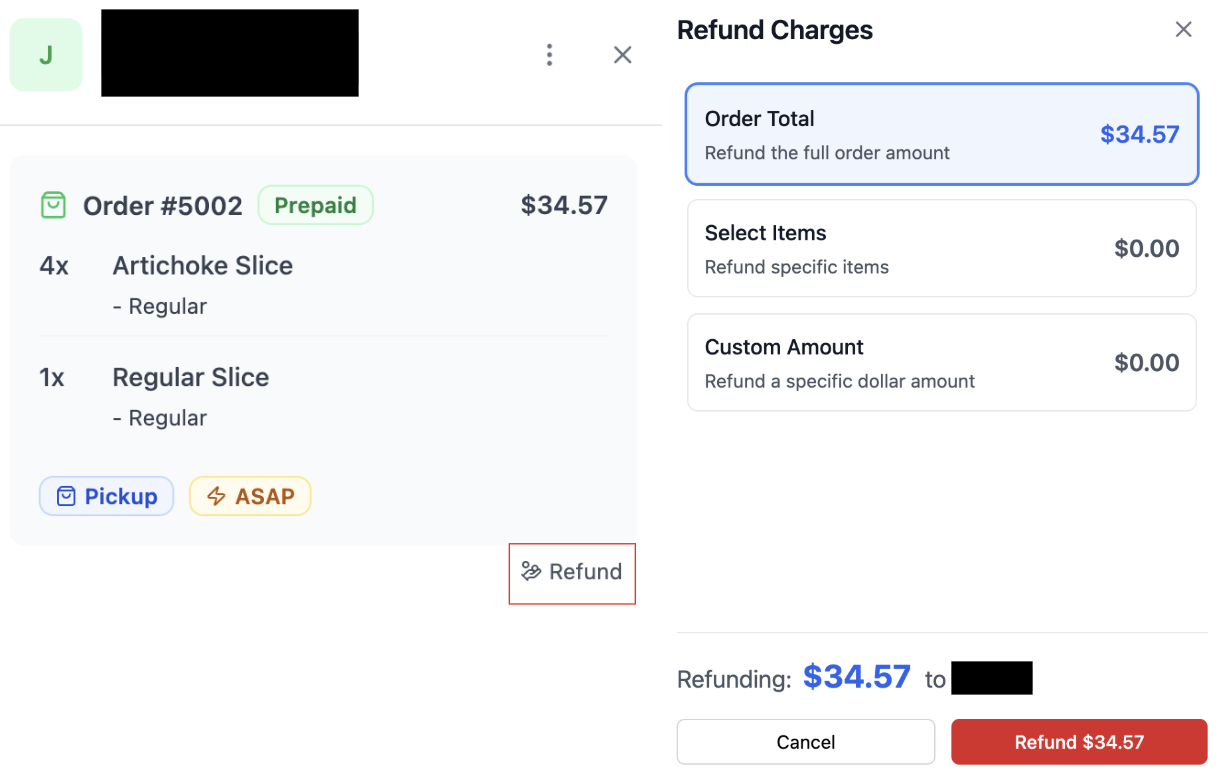
**3. You will see a "Refund" button on the lower left corner. Click on it and it will bring up another window that allows you to refund the transaction in various ways.**
- [Getting started](https://help.loman.ai/knowledge/getting-started?hsLang=en)
- [Configuring Your Agent](https://help.loman.ai/knowledge/configuring-your-agent?hsLang=en)
- [Using Your Dashboard](https://help.loman.ai/knowledge/using-your-dashboard?hsLang=en)
- [Account](https://help.loman.ai/knowledge/account?hsLang=en)
- [Announcements](https://help.loman.ai/knowledge/announcements?hsLang=en)
[](https://loman.ai)
[mailto:email@email.com](mailto:email@email.com)
Copyright © 2026, Loman AI