%201.png?width=259&height=78&name=Group%204%20(8)%201.png)
What You’ll Need Before You Start
Please have the following ready:
- Legal business information (as registered with the government)
- EIN (for LLCs, corporations, etc.)
- Physical business address
- Personal information for the business representative (required by Stripe)
- Bank account details for payouts
- Access to your Loman dashboard.
⚠️Important: Payments cannot be enabled until all required information is completed and verified
Step-by-Step Setup Instructions
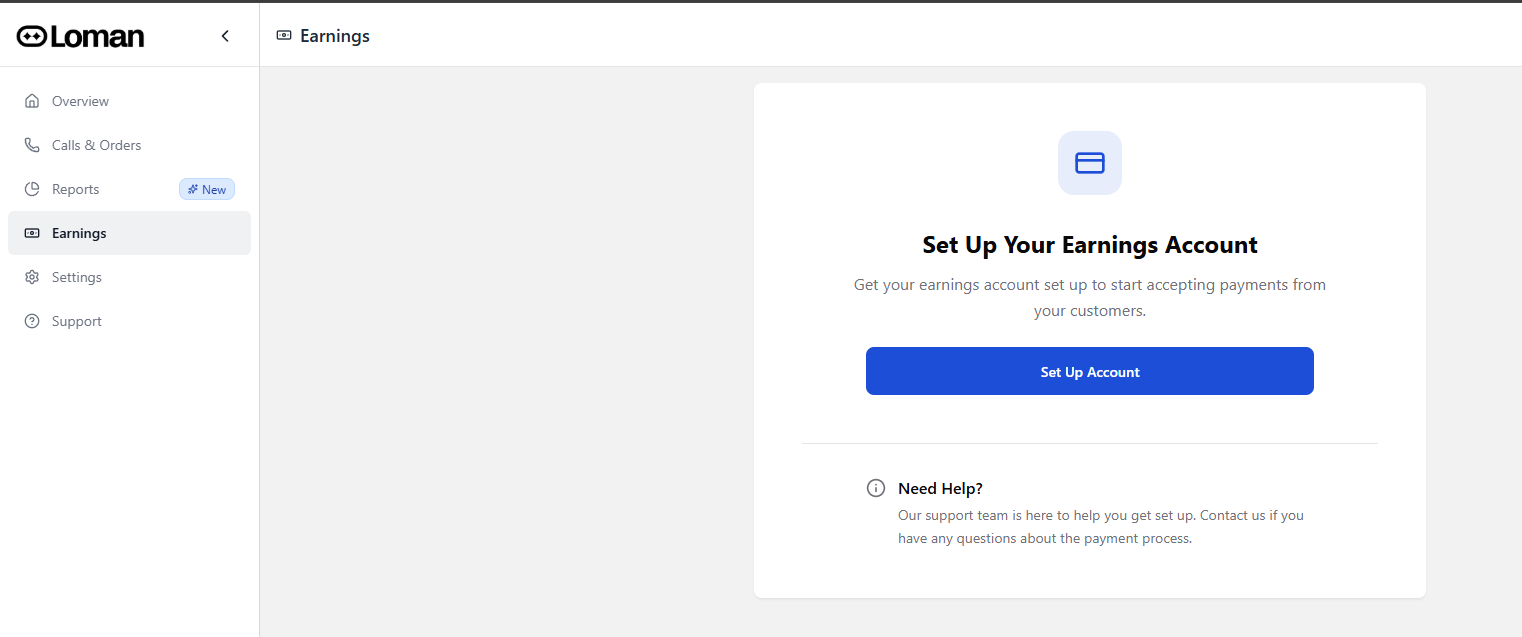
Step 1: Start Payment Setup in Loman
1. Log into your Loman dashboard
2. Navigate to the Earnings tab
3. Click Set up account
You’ll be redirected to Stripe to begin creating your payments account.
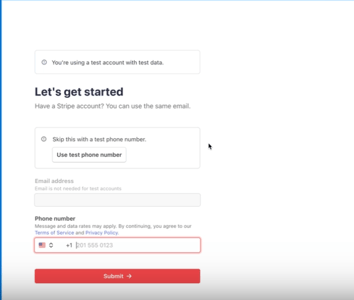
Step 2: Verify Contact Information
1. Enter your email address
2. Enter your phone number
3. Click Submit
Stripe will send a verification code to your phone.
4. Enter the code when prompted
This enables two-factor authentication and links your Stripe account to Loman.
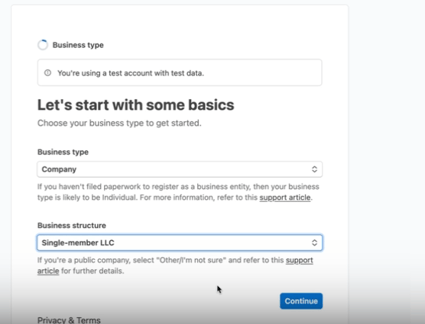
Step 3: Select Your Business Type
1. Choose Company as the business type
2. Select your entity structure:
-Single-member LLC
-Multi-member LLC
- Private corporation (S-Corp or C-Corp)
3. Click Continue
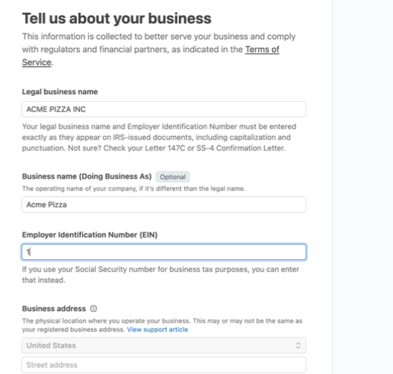
Step 4: Enter Business Information
Provide the following details exactly as registered:
- Legal business name (as recognized by the government)
- Doing Business As (DBA) name, if applicable
- EIN
- Physical business address
- Industry: Restaurants / Nightlife
- Business website (your restaurant’s actual website)
⚠️Do not enter Loman’s information. This must be your restaurant’s business details.
Click Continue once complete.
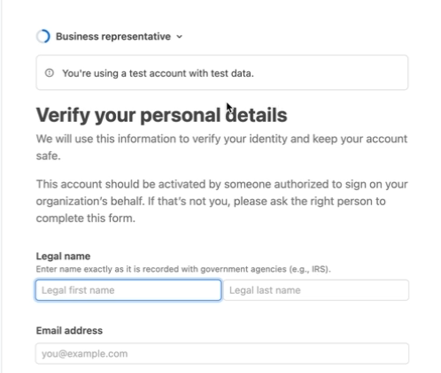
Step 5: Enter Business Representative Information
You will be asked for:
- Full legal name
- Date of birth
- Home address
- Phone number
- Last four digits of SSN (or government-issued ID, if applicable)
Important: All information must be accurate. Payments will not be enabled if this step is incomplete.
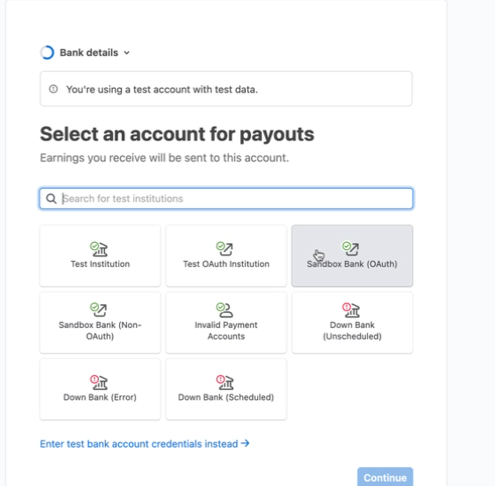
Step 6: Connect Your Bank Account
1. Select your bank from the list (e.g., Chase, Bank of America, Wells Fargo)
2. Log in securely to your bank
3. Choose the correct checking or business account for payouts
4. Confirm this is where you want deposits sent
Once connected, Stripe will automatically route payouts to this account.
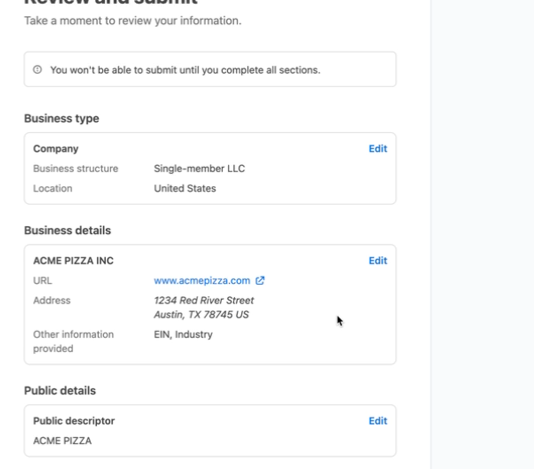
Step 7: Review Public Business Details (Very Important)
This step determines what customers see on their bank statements.
• Locate Public Business Details in Stripe
• If your legal business name is different from your restaurant name:
Enter your restaurant name here
Why this matters:
If customers see a different name on their statement, it may trigger fraud alerts or chargebacks.
Example:
Legal name: Silver Spoon LLC
- Public business name: Acme Pizza
Always use your restaurant’s name in public details.
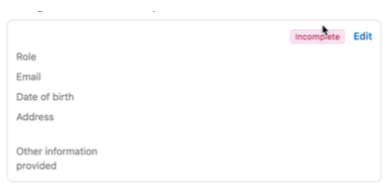
Step 8: Resolve Any “Incomplete” Warnings
- Click into the section
- Provide the missing information
Payments cannot be enabled until all required fields are completed.
You may be asked to:
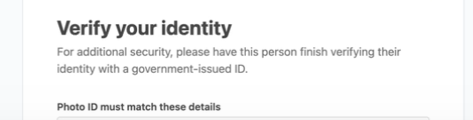
- Upload a photo ID (driver’s license or similar)
- Confirm personal or business details
Step 9: Submit for Verification
1. Click Agree and Submit
2. Stripe will verify your information
Verification usually completes within minutes, but may take slightly longer in some cases.
Step 10: Confirm Payments Are Enabled
- Payments enabled
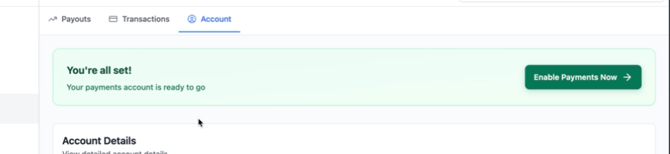
Your account is now live.
You can now:
- Accept payments over the phone
- Take payment for pickup or delivery orders
- Receive automatic payouts to your bank
Need Help?
If you have any questions or run into issues at any point:
- Contact the Loman Support Team
- Or reach out directly to your Loman point of contact
We’re happy to help you get set up quickly and smoothly.