---
title: Menu Resync
description: Loman Knowledge Base
---
[Skip to content](https://help.loman.ai/knowledge/menu-resync#main-content)
English
Show submenu for translations
[](https://loman.ai)
- [Tickets](https://45792283.hs-sites.com/tickets-view)
- [Sign out](https://45792283.hs-sites.com/_hcms/mem/logout)
Open main navigation
Close main navigation
- [Tickets](https://45792283.hs-sites.com/tickets-view)
- [Sign out](https://45792283.hs-sites.com/_hcms/mem/logout)
- English
Show submenu for translations
- [Contact Support](mailto:support@loman.ai)
[Contact Support](mailto:support@loman.ai)
How can we help you?
- There are no suggestions because the search field is empty.
1. [Loman Knowledge Base](https://help.loman.ai/knowledge?hsLang=en)
2. [Using Your Dashboard](https://help.loman.ai/knowledge/using-your-dashboard?hsLang=en)
# Menu Resync
## ONLY FOR NON-TOAST USERS
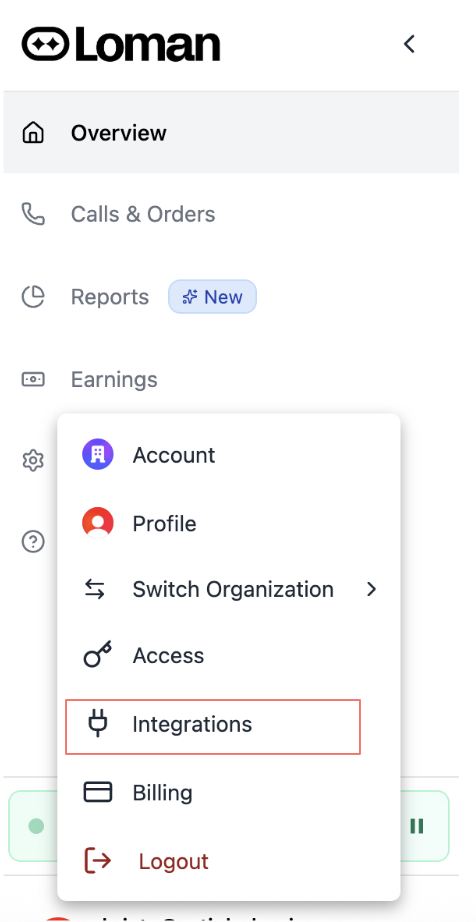
Sometimes you’ll need to resync your menu with your Loman's agent, such as an Out of Stock item becoming available again or general menu updates/price increases. Please follow the steps shown in the graphic to complete this update.
**1. Click on your user in the lower left corner. Then Select Integrations.**
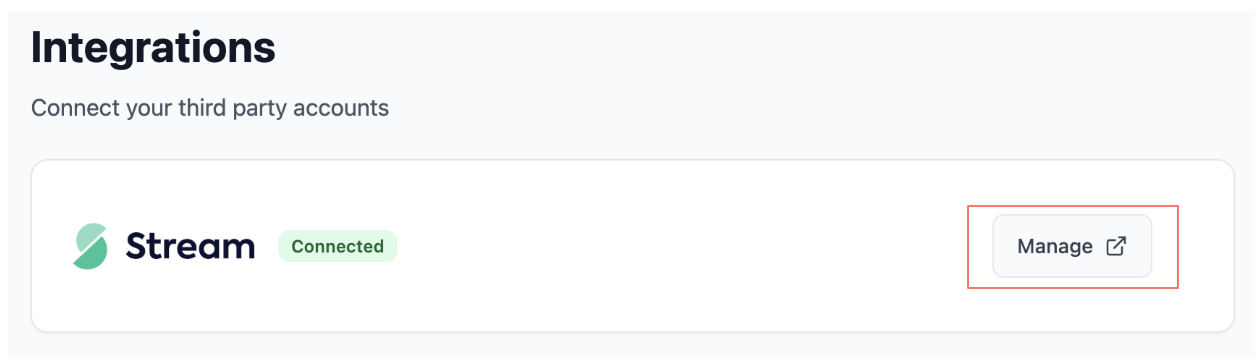
**2. From this page, click on Manage.**
**3. A new tab will open. Focus your attention on the upper right corner and see the "Sync All" and Publish All" buttons.**
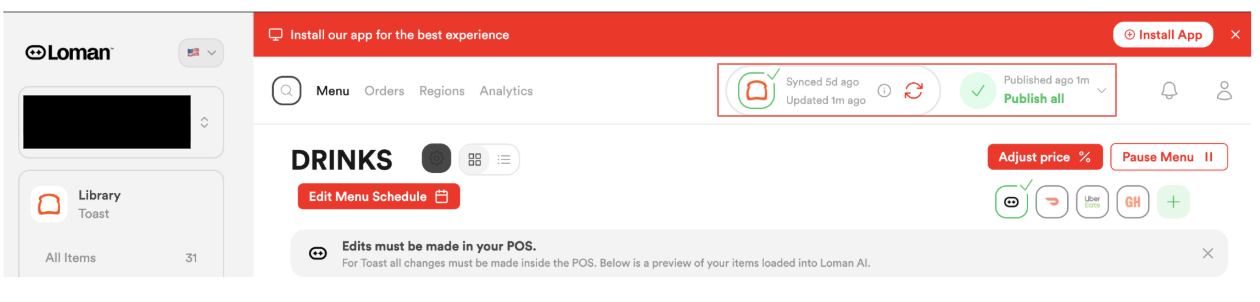
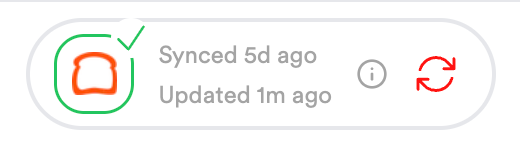
**4. Click the left button first (the two arrows in a circle). Once it's done spinning, proceed to next step.**
**IMPORTANT NOTE:**
The Synced time (i.e. Synced 5 days ago), means the last time the POS was synced to Stream.
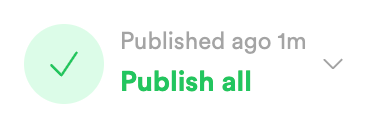
The Updated time (i.e. Updated 1 minute ago) means the last time Stream detected a change on your POS. If this step is completed successfully, the **Updated** timestamp should refresh to a "few seconds" after the sync. (i.e. Updated 7s ago).
If you have adjusted something on the POS level and the **Updated time has NOT changed after a sync**, that means your **POS changes may need a Publish event** to correctly pull over.
**5. Click the "Publish All" button. After it's done, spinning, it will update the time to when it was last published!**
Related to
- [Menu](https://help.loman.ai/hc/en-us/search?content_tags=01K6XWXH7QG6HHXRSRK4H18ACX&utf8=%E2%9C%93&hsLang=en)
- [Getting started](https://help.loman.ai/knowledge/getting-started?hsLang=en)
- [Configuring Your Agent](https://help.loman.ai/knowledge/configuring-your-agent?hsLang=en)
- [Using Your Dashboard](https://help.loman.ai/knowledge/using-your-dashboard?hsLang=en)
- [Account](https://help.loman.ai/knowledge/account?hsLang=en)
- [Announcements](https://help.loman.ai/knowledge/announcements?hsLang=en)
[](https://loman.ai)
[mailto:email@email.com](mailto:email@email.com)
Copyright © 2026, Loman AI